

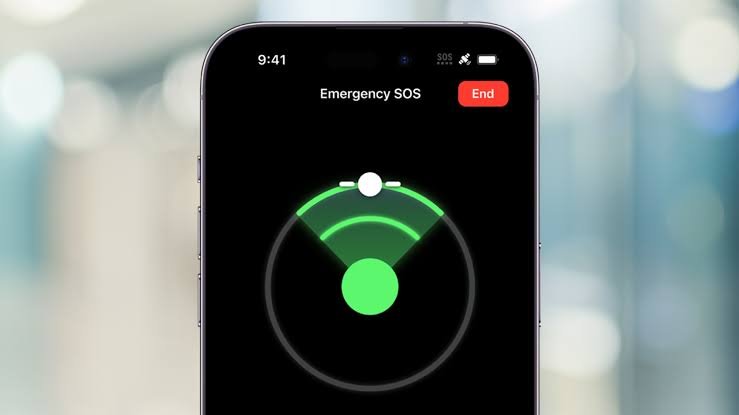
Many iPhone users feel confused when they suddenly see SOS or SOS Only displayed in the status bar of their device. The SOS meaning on iPhone is connected to your cellular network connection and does not usually indicate that your iPhone is damaged. When this message appears, your device has lost access to your regular mobile carrier network but may still connect to other available networks for emergency communication.
The SOS message is an important safety feature created to help users stay connected during critical situations. Even when your normal phone service is unavailable, your iPhone can still attempt emergency calls through supported networks. This feature is especially useful in areas with poor coverage, during travel, or when your carrier experiences temporary service problems. Understanding why this happens can help you fix the issue faster.
Many people think seeing SOS means their iPhone is completely offline, but that is not always true. Your phone still works normally for many functions that use Wi-Fi, apps, and stored information. The problem mainly affects cellular services such as regular calls, text messages, and mobile data. Knowing this difference helps users avoid unnecessary panic when they see the SOS indicator.
What Does SOS Mean on iPhone?
The SOS meaning on iPhone refers to a situation where your device cannot connect to your selected mobile carrier network. Your iPhone continuously searches for available cellular signals, and when it cannot find your carrier service, it may display SOS or SOS Only at the top of the screen. This means your phone has limited network access and is prepared for emergency communication if needed.
When your iPhone is in SOS mode, you may not be able to make normal phone calls, send regular SMS messages, or use mobile data from your carrier. However, emergency services may still be available depending on your location and local network support. This feature ensures that iPhone users have a way to contact help even when their main carrier connection fails.
The SOS indicator can appear on different iPhone models, including newer devices with eSIM technology and older models using physical SIM cards. The cause is usually related to network availability rather than the iPhone model itself. A temporary signal loss, carrier outage, or account issue can trigger the same message across different devices.
Why Is My iPhone Showing SOS or SOS Only?
There are several reasons why your iPhone may display SOS or SOS Only. One of the most common causes is being in an area with weak or unavailable cellular coverage. Places such as underground parking areas, remote locations, mountains, elevators, and buildings with thick walls can block signals and prevent your iPhone from connecting to your carrier.
Another common reason is a temporary network outage from your mobile provider. Sometimes carriers experience technical problems, maintenance, or unexpected service interruptions. During these situations, your iPhone may lose access to normal cellular service and automatically switch to SOS mode until the connection becomes available again.
SIM card problems can also cause SOS issues. If your physical SIM card is damaged, incorrectly placed, or not recognized by your iPhone, your device may fail to connect with your carrier. For eSIM users, incorrect activation, outdated settings, or account problems can create similar connection problems.
Traveling is another situation where users often see SOS on their iPhones. If you travel internationally without enabling roaming or without a supported carrier plan, your iPhone may not connect to a local network. Checking your carrier settings before traveling can help prevent unexpected service interruptions.
Difference Between SOS, SOS Only, and Emergency SOS
Many users confuse SOS, SOS Only, and Emergency SOS because these terms sound similar. However, they represent different features on an iPhone. SOS or SOS Only appears when your device cannot connect to your regular carrier network but may still access emergency calling through another available network.
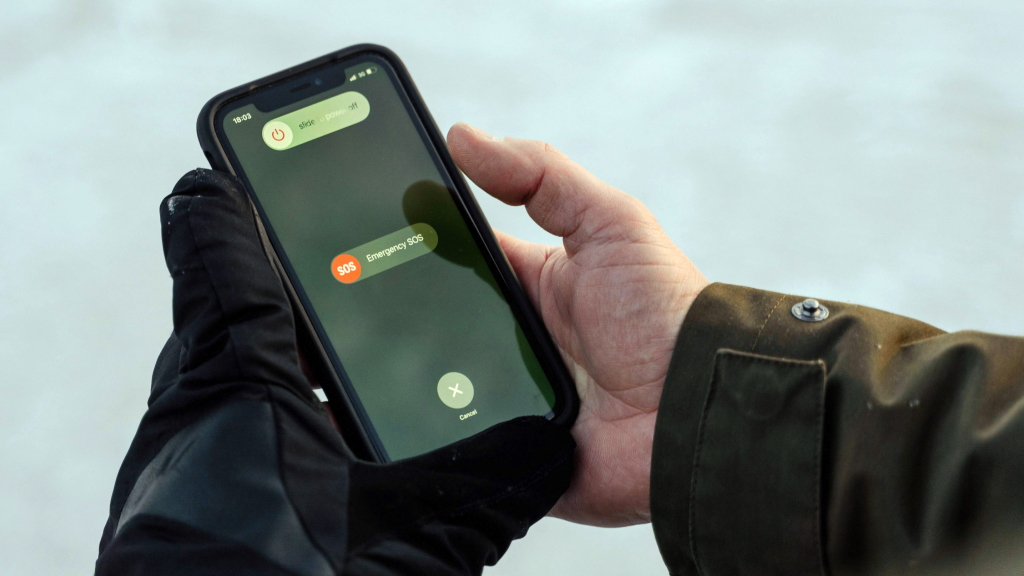
Emergency SOS is a separate safety feature designed to help users quickly contact emergency services. It can be activated through specific button combinations or settings on your iPhone. Emergency SOS does not appear because of network problems; instead, it is a tool you manually use during dangerous or urgent situations.
Understanding this difference is important because seeing SOS in your status bar does not mean your iPhone has automatically called emergency services. It simply indicates that your device currently has limited cellular access. Your phone will not contact emergency responders unless you activate the Emergency SOS feature or make an emergency call yourself.
The SOS indicator is designed to protect users by keeping emergency communication available whenever possible. Apple created this system to provide an extra layer of safety, especially in situations where a normal cellular connection is unavailable.
How to Fix SOS Mode on iPhone
If your iPhone is showing SOS mode, there are several simple solutions you can try. The first method is turning Airplane Mode on and off. This refreshes your wireless connections and allows your iPhone to search for your carrier network again. Many temporary connection problems can be solved with this quick step.
Restarting your iPhone is another effective solution. A restart clears temporary software problems and reloads important network settings. After your device turns back on, check the status bar to see whether the SOS message has disappeared and your normal signal has returned.
You should also check your cellular settings. Open your iPhone settings and confirm that mobile service is active. If you recently changed carriers, updated your plan, or installed a new SIM or eSIM, your network settings may need adjustment.
Updating your iPhone software and carrier settings can also help. Apple and mobile providers regularly release updates that improve network performance and fix connection issues. Keeping your device updated ensures that your iPhone can communicate properly with your carrier.
Advanced Ways to Fix SOS Problems on iPhone
If basic troubleshooting does not remove SOS mode, you may need to try advanced solutions. Resetting network settings is one option that can solve deeper connection problems. This removes saved network information and restores your iPhone’s wireless settings to their default condition.
Before resetting network settings, remember that saved Wi-Fi passwords and some connection preferences will be removed. After the reset, you will need to reconnect to Wi-Fi networks and adjust some settings again. This method is useful when incorrect network configurations prevent your iPhone from connecting properly.
Checking your carrier account is another important step. Sometimes an inactive plan, unpaid bill, expired service, or account restriction can stop your iPhone from accessing mobile networks. Contacting your carrier can help confirm whether your account and SIM or eSIM are working correctly.
If the issue continues after trying all solutions, there may be a hardware problem. Problems with the iPhone antenna or internal components can affect cellular reception. In that case, contacting Apple Support or visiting an authorized repair center may be the best option.
How to Prevent SOS Issues on iPhone
Preventing SOS problems starts with maintaining your iPhone and keeping important settings updated. Regularly installing iOS updates helps improve device performance and fixes software problems that may affect network connections. Updated carrier settings also help your iPhone communicate smoothly with your mobile provider.
Before traveling, always check your carrier coverage and roaming options. Knowing whether your current plan works in another country or region can prevent unexpected connection problems. If you frequently travel, consider using a compatible roaming plan or eSIM service for better connectivity.
Using Wi-Fi Calling can also provide an alternative when cellular signals are weak. This feature allows supported iPhones to make calls over a Wi-Fi connection instead of relying only on mobile towers. It can be helpful in homes or offices where cellular reception is limited.
Final Thoughts About SOS Meaning on iPhone
The SOS meaning on iPhone is mainly about a temporary loss of regular cellular service. It does not automatically mean your iPhone is broken or permanently damaged. In most situations, the problem can be solved by refreshing your connection, checking your SIM or eSIM, updating settings, or contacting your carrier.
Understanding why your iPhone shows SOS helps you respond calmly and find the right solution. Whether the cause is weak coverage, a network outage, or a settings issue, most SOS problems can be fixed with simple troubleshooting steps. Apple’s emergency communication system ensures that users still have access to help when normal service is unavailable.
Conclusion
Seeing SOS on your iPhone can be confusing, but it usually does not mean your device has a serious problem. The SOS meaning on iPhone is mainly related to a temporary loss of connection with your regular cellular network. Your iPhone may still allow emergency calls, but normal calling, texting, and mobile data services may not work until the network connection returns.
In most cases, you can fix the issue by checking your signal, restarting your device, turning Airplane Mode on and off, updating carrier settings, or reviewing your SIM or eSIM connection. Understanding why SOS appears helps you solve the problem quickly and keep your iPhone working smoothly.
The SOS feature is an important safety tool that ensures users can reach emergency services when normal mobile service is unavailable. By keeping your iPhone updated and maintaining proper network settings, you can reduce the chances of seeing SOS unexpectedly in the future.
Frequently Asked Questions
What does SOS mean on iPhone?
SOS on iPhone means your device cannot connect to your regular carrier network but may still make emergency calls through available networks.
Why is my iPhone stuck on SOS Only?
Your iPhone may stay on SOS Only because of weak coverage, carrier problems, SIM issues, roaming settings, or incorrect network configurations.
How can I remove SOS from my iPhone?
You can remove SOS by restarting your iPhone, turning Airplane Mode on and off, updating settings, checking your SIM, or contacting your carrier.
Can I use mobile data when my iPhone shows SOS?
No, mobile data usually does not work in SOS mode because your iPhone is not connected to your normal carrier network.
Does SOS mean my iPhone is hacked or damaged?
No, SOS usually indicates a cellular connection problem and does not mean your iPhone is hacked or physically damaged.
Why does SOS appear even when I have a SIM card?
SOS can appear with a SIM card if there is poor coverage, a carrier outage, SIM damage, or a problem with your account.
Is SOS mode the same as Emergency SOS on iPhone?
No, SOS mode shows a network issue, while Emergency SOS is a safety feature used to contact emergency services manually.
You May Also Read: Cuba Flag